
Production tracking software that knows where every job is
TrackFinch is production tracking software for job shops, fab, cabinet and sign shops. Your crew taps Start, ticks each step and taps Finish on their phones. The office sees every job planned, in progress or done, what's late, and how long each step took as your crew logs it.
No sensors on your machines. Nothing to install.
Two kinds of production tracking. Most small shops need the second.
Search for production tracking and you get machine sensors, OEE dashboards (OEE is how much of a machine’s time goes to making good parts) and big MES suites (an MES is a full plant-floor system). That’s one kind, and for some shops it’s the right buy. The other kind follows the job instead of the machine. Here’s how to tell which one you need.
Machine monitoring
Counts what the machines do
- How it knows
- A sensor or controller hookup on each machine you want watched.
- What it tells you
- Cycles, downtime and OEE for that machine.
- What you set up
- Hardware on the machines, then wiring and setup.
- Buy it when
- One bottleneck machine sets the pace for the whole shop.
If one machine is your bottleneck, this is the right tool.
Job tracking · TrackFinch
Follows the job
- How it knows
- Your crew taps Start, ticks each step and taps Finish on their phones.
- What it tells you
- Who has the job, which step it’s on, when it’s due and what’s late.
- What you set up
- Nothing on the machines. It opens in the browser on any phone.
- Buy it when
- Your time goes to “where is it?” and “who has it?”
Most 3 to 50 person shops don’t lose their time to a machine. They lose it to “where is it?” and “who has it?” TrackFinch is the second kind: WIP tracking software with no hardware.
WIP (work in progress) is every job you’ve started and haven’t finished: cut but not drilled, welded but not painted. Here’s what WIP inventory is, and if you were shown a full plant-floor system, here’s what an MES does and when it fits.
Step through the week and watch what goes late
This is the screen production tracking software is for: the Schedule sorts every open job by due date into four piles: Overdue, This week, Next 30 days and Later. When a job is done, it drops off. Pick a day below and run one sample shop’s week, Monday to Friday.
Today is
Monday, Oct 19
One job is already late: WO-0409, 6 sign panels, was due last Friday. Three more are due this week, and WO-0414 hasn’t been started.
The Dashboard, the first screen you see when you sign in, flags any job due within 2 days or already late in its “Production today” and needs-attention lists, so a job like WO-0415 shows up there before it ever turns red here.
It shows what your crew has logged when you open it. It isn’t a live feed: a job moves when someone taps Start or completes it. Deciding what runs next is the job of production planning software.
Your crew’s whole job: a few taps on their phone
Your crew won’t stop to type into a computer, and they don’t have to. They open the TrackFinch shop floor screen in the browser on their own phone and add it to the home screen. There’s no production tracking app to get from an app store.
Start
My production plan shows their jobs plus the unassigned ones, due first. They tap Start on the next one and it goes in progress on their name.
Tick each step
Every step on the routing gets a checkbox. Cut’s done, tick. Drill’s done, tick. Back in the office, the work order reads 2/4 checked off.
Each tick logs that step’s planned minutes. If a step ran long, whoever finished it changes that one number on the work order. Nothing else to type. No clock, no stopwatch.
Finish, then Complete
When the last step’s done, Finish opens the job’s work order. One more tap on Complete closes the job: the steel it used comes off the shelf count and the 40 plates go on it.
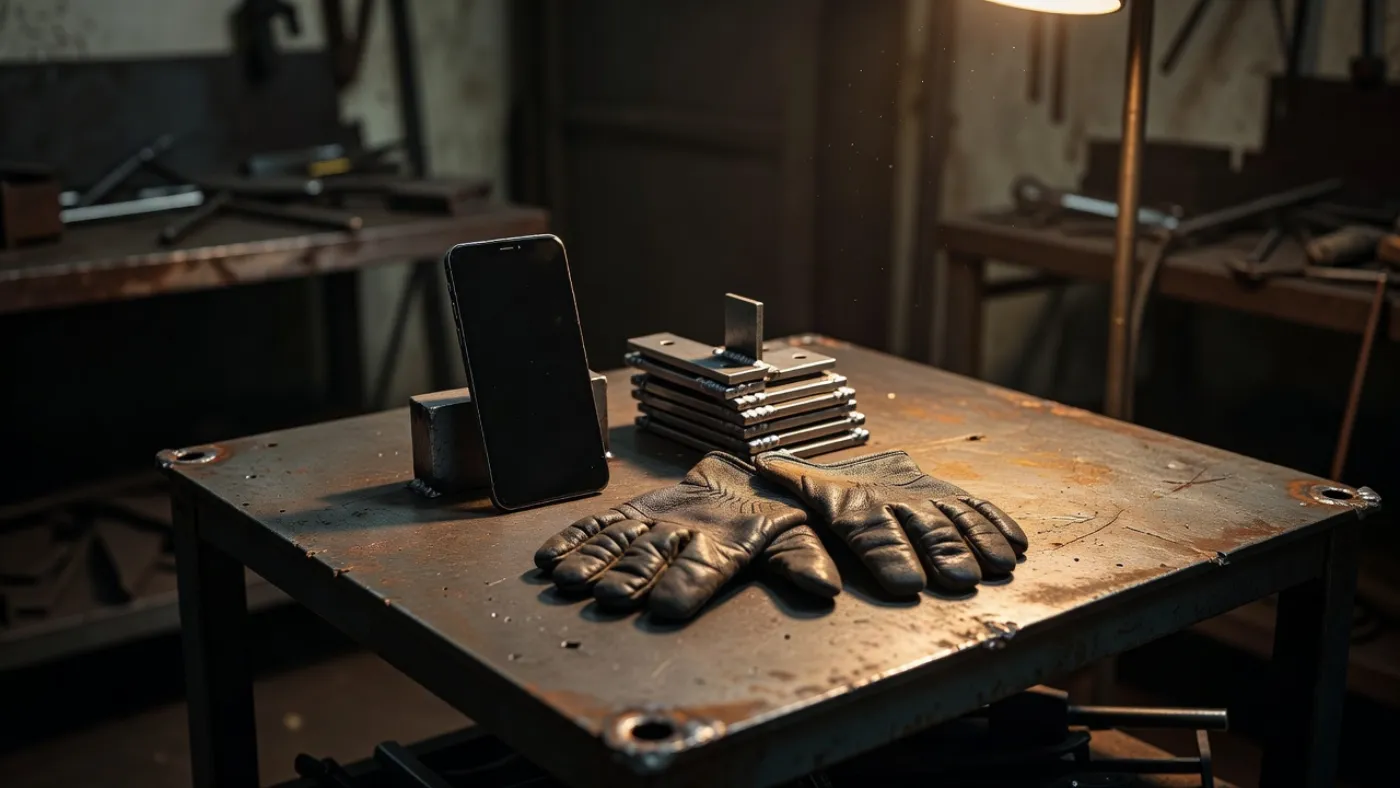
The office picks who each job is assigned to, on the work order. Anyone can switch to Everything open and tick a step on a job that isn’t theirs.
It needs a signal. There’s no offline mode, so if the back of your shop has no Wi‑Fi or cell coverage, check that before you hand it to the crew.
When a customer calls, type the order number
“Where’s my order?” You don’t put them on hold and walk the floor. Type the order number into search from any screen in TrackFinch and the order opens with every job on it and where each one stands.
It asks before you ship
Hit Ship items while WO-0412 is still open and TrackFinch stops to ask “Ship with production still open?” first. You decide, instead of finding out from the customer.
It knows your stock
The job shows the parts it needs against what’s on hand. Complete it and those parts come out of stock and the finished plates go in. Production tracking software that keeps your shelf count too.
You link it once
Type the order in on the Orders screen, or it’s made for you when you accept a quote. When you plan the job in the work order software, pick the order under Linked order. That’s the whole link.
Planned 200 minutes. It took 250.
You don’t just find out WO-0412 is done. You see each step’s plan beside what it really took. Weld was planned at 80 minutes and took 125. Here’s how that number gets there: a ticked step logs its planned minutes. When a step runs long, whoever finished it types what it really took, one number on the work order. No clock. Put that back on the routing and your next quote stops guessing.
Next quote · labor
40× Base plate
Labor = routing minutes × station rate
| Step | Minutes | Rate | Labor |
|---|---|---|---|
| CutSaw | 40 | $60/h | $40 |
| DrillDrill press | 60 | $60/h | $60 |
| WeldWeld bay | 80120 | $90/h | $120$180 |
| PaintPaint booth | 20 | $60/h | $20 |
Where the minutes come from
Nothing on your machines and no stopwatch. The minutes are as good as what your crew types in, and anyone can fix a step’s minutes on the work order later.
Where they go next
Quote labor comes off the same routing: minutes times each station’s hourly rate, Weld bay $90, the rest $60. Change Weld from 2 to 3 minutes a plate and the next quote for 40 goes from $240 to $300. That’s the quoting side of TrackFinch, on the same routing your crew just ticked off.
An afternoon of setup, then it runs on taps
You don’t build every part and routing before the first job moves. Four steps, most of it a spreadsheet you already have. After that the floor taps and the office reads.
Import items and customers
Export them from your spreadsheet as CSV and import them. Assets can come in the same way.
Sample data: items.csvcustomers.csv
Give your repeat parts a routing
Only the parts you make often. List the steps, the minutes a part and the station.
Sample data: Base plateCut → Drill → Weld → Paint
Invite the crew
Copy the invite link and send it over. They open TrackFinch in the browser on their phone. Nothing to install.
Sample data: D. Ruizjoined
Plan this week’s jobs
Type in your orders, or accept a quote and the order is made. Add a work order for each job with a due date.
Sample data: WO-0414 WedWO-0415 ThuWO-0412 Fri
A one-off job? Add the item you’re building and make the work order. No routing needed: it still runs planned, in progress, done, and shows up late if it is.
Free
Free, with nothing held back
- Every module
- The whole team
- No card
- No demo call
Why: TrackFinch is being built with its first shops, and it gets better when real jobs run through it. Yours are the jobs it needs. The details are on the pricing page.
Settings → Export workspace downloads a zip with a CSV for every table: orders, work orders with their step minutes, items, stock moves, customers, everything.
Straight list
What it doesn’t do
- Sync with QuickBooks or Shopify
- Capacity scheduling or a Gantt chart
- Read data off your machines
- Clock people in and out
If you need one of these today, better to know now than after the setup.
Straight answers about production tracking
What’s left to ask before you put a week of jobs in, answered short. Where the answer is no, it says no.
Do I need sensors or new hardware on my machines?
No. TrackFinch follows the job, not the machine, so nothing gets wired to a saw, a press or a mill. All it needs is a phone or computer with a browser and a signal.
Is it real time?
No. Each screen shows what your crew has logged by the time you open it, so a step counts once someone ticks it. It needs a signal to save, and there is no offline mode.
Does every one-off job need a part and routing set up first?
Only an item. Every work order names the thing being built, but the steps are optional. Skip the routing and the job still goes from planned to in progress to done, and the Schedule still flags it once it’s past due.
How do orders get in? Does it connect to QuickBooks?
Two ways: enter them on the Orders screen, or accept a quote in TrackFinch and it becomes the order. It doesn’t connect to QuickBooks or any other accounting software, and the CSV import takes items, customers and assets, not orders.
Who assigns jobs, and can two people work one job?
The office sets Assigned to on the work order, or whoever taps Start on a planned job takes it on their name. A job has one name on it, but anyone on the crew can tick the step they just finished.
Is TrackFinch manufacturing job tracking software for a job shop?
Yes. It’s made for small shops that build to order: machining, fab, cabinets, signs and small batch runs. Each job is a work order with its due date, its steps and the customer order it belongs to.
It’s free. What’s the catch, and can I get my data out?
No card and no paid plan: every module is open to your whole team. TrackFinch is new, and the shops using it now help decide what gets built next. Your data comes out: Settings → Export workspace downloads a zip with a CSV for every table (orders, work orders, items, stock, customers and the rest).
Does it schedule machine capacity?
No. There’s no capacity planning, finite scheduling or Gantt chart. You give each work order a due date, the Schedule sorts open jobs by it, and the dashboard flags anything due in the next 2 days or already late.
Put this week’s jobs in it
Not the whole shop. Just the jobs due this week. Plan them this afternoon, and the next “where’s my order?” is a search, not a walk.
Production tracking software with no sensors and nothing to install: send the crew the invite link and they tap Start on their phones.